Understanding Lazy-Loading in Popular Frontend Frameworks
Lazy-loading is a concept that allows us to defer the loading of certain components to eliminate potential performance bottlenecks. This article discusses lazy-loading techniques for popular frontend frameworks.
“Lazy-loading” might be one of my favourite terms in all of programming. When I first heard it a few years back, it genuinely made me smile. Let’s look at what it actually means across the three most popular frontend frameworks: Angular, React, and Vue.js.
Eager vs Lazy
Eager loading pulls in every component your application has, which opens the door to performance bottlenecks. Lazy-loading holds off on loading a component until the moment you actually need it.
You might think: brilliant, the app gets snappier, loads faster. True, up to a point. But if a particular module takes ages to execute, that slowdown still hits when it finally loads. You can tackle this with preloading (fetching a component in the background before the user asks for it). That deserves its own article, but I’ll touch on the concept towards the end.
About the sample projects
The sample apps built across all three frameworks follow the same pattern. Each one demonstrates two things:
How to lazy-load a component within a page
How to lazy-load a component via routing
To make lazy-loading visible, each demo calculates the 42nd Fibonacci number. Maths operations block execution, meaning the programme can’t move forward until the calculation finishes. We’re using this purely to simulate a piece of code that takes a long time to run, so you can see the impact on the user experience.
Project on GitHub
Grab the project here: https://github.com/tpiros/lazy-loading
Angular
Let’s start with Angular. This framework has a quirk when it comes to lazy-loading: the smallest unit you can lazy-load via routing is a module, because components always belong to modules.
The Fibonacci component
Here’s the component in Angular:
fibonacci: number;

  ngOnInit(): void {
    const fibonacci = num => {
      if (num <= 1) return 1;
      return fibonacci(num - 1) + fibonacci(num - 2);
    };
    this.fibonacci = fibonacci(42);
  }
It’s a standalone component that already belongs to the root Angular module, so we can drop it onto a page.
Loading a component on a page
First, let’s see how to load the component on a page. We add this to app.component.html:
<div>
  <p>I am the <strong>home</strong> component.</p>
  <button (click)="showMe()">{{ showFibonacci ? 'Hide' : 'Show' }}</button>
  <div *ngIf="showFibonacci">
    <app-fibonacci-one></app-fibonacci-one>
  </div>
</div>
With this TypeScript behind it:
export class AppComponent {
  showFibonacci: Boolean = false;
  showMe() {
    this.showFibonacci = !this.showFibonacci;
  }
}
Here’s the interesting bit: the Fibonacci component only loads when showFibonacci flips to true. That means ngIf on its own gives you lazy-loading. Angular doesn’t just show/hide the component in the DOM. It adds or removes it based on the condition.
Lazy-loading via routing
For routing-based lazy-loading in Angular, you need a feature module (as we established).
Learn more about Angular feature modules: https://angular.io/guide/feature-modules
Create a feature module and its component via the Angular CLI:
ng g m fibonacci && ng g c --module=fibonacci fibonacci.
Once the module exists and has a component assigned to it, wire it up in your main routing module (app-routing.module.ts):
const routes: Routes = [
  {
    path: 'fibonacci',
    loadChildren: () =>
      import('./fibonacci/fibonacci.module').then((m) => m.FibonacciModule),
  },
];
We’re using loadChildren() and importing the module inline as part of the route definition. The module only loads when that route becomes active.
Compare that with this:
import { FibonacciComponent } from './fibonacci/fibonacci.component';

const routes: Routes = [
  {
    path: 'fibonacci',
    component: FibonacciComponent,
  },
];
This eagerly loads FibonacciComponent. It creates a significant delay on the main page. Why block the home screen with an operation from a component the user hasn’t even navigated to?
Read more about lazy-loading in Angular: https://angular.io/guide/lazy-loading-ngmodules
Vue.js
Next up: lazy-loading in Vue.js. Create a Vue.js app (using the Vue CLI) and add a new component. Here’s the <script> portion:
const fibonacci = (num) => {
  if (num <= 1) return 1;
  return fibonacci(num - 1) + fibonacci(num - 2);
};
const myFibonacci = fibonacci(42);

export default {
  name: 'Fibonacci',
  data: () => ({
    fibonacci: 0,
  }),
  created() {
    this.fibonacci = myFibonacci;
  },
};
The calculation sits outside the
export default {}block on purpose. If it were inside, we couldn’t simulate a blocking operation. Vue.js does havemountedandmethodproperties that would let you fire the code only when the component mounts.
Lazy-loading a single component
With Vue.js, v-if adds/removes an element from the DOM, so it can lazy-load a component. But there’s an extra step compared to Angular. Look at this:
<div v-if="showFibonacci">
  <Fibonacci />
</div>
<script>
  import Fibonacci from './Fibonacci.vue';
  export default {
    name: 'Home',
    data: () => ({
      showFibonacci: false,
    }),
    methods: {
      showMe: function () {
        this.showFibonacci = !this.showFibonacci;
      },
    },
    components: {
      Fibonacci,
    },
  };
</script>
Looks like it should work, right? Open the page and you’ll notice the initial load drags. The component loads eagerly regardless of the v-if condition. We’re telling Vue to pull in all components whether or not they’re in the DOM.
Swap out the <script> section and the performance picture changes completely:
// import Fibonacci from './Fibonacci.vue';
export default {
  name: 'Home',
  data: () => ({
    showFibonacci: false,
  }),
  methods: {
    showMe: function () {
      this.showFibonacci = !this.showFibonacci;
    },
  },
  components: {
    // Fibonacci
    Fibonacci: () => import('./Fibonacci.vue'),
  },
};
By moving the import inline into the component’s property, we’ve switched on lazy-loading. Now the main page snaps to life. You only feel the delay when the Fibonacci component actually appears.
Lazy-loading components via routing
Lazy-loading through Vue.js routing follows the same pattern. Check out the router:
// excerpt
import Home from '../views/Home.vue';
import Fibonacci from '../views/Fibonacci.vue';

Vue.use(VueRouter);

const routes = [
  {
    path: '/',
    name: 'Home',
    component: Home,
  },
  {
    path: '/fibonacci',
    name: 'Fibonacci',
    component: Fibonacci,
  },
];
This router probably looks familiar. It works, but with a blocking operation in the Fibonacci component, you can watch it drag down the Home component’s load time. That makes no sense.
Fix it by importing the component at the route definition:
import Home from '../views/Home.vue';
// import Fibonacci from '../views/Fibonacci.vue';

Vue.use(VueRouter);

const routes = [
  {
    path: '/',
    name: 'Home',
    component: Home,
  },
  {
    path: '/fibonacci',
    name: 'Fibonacci',
    component: () => import('../views/Fibonacci.vue'),
  },
];
Now the main page loads without being blocked. The Fibonacci component only loads when the user hits that route.
Learn more about lazy-loading in Vue.js: https://router.vuejs.org/guide/advanced/lazy-loading.html
React
Last up: lazy-loading in React. The app was created with create-react-app, and like the previous examples, we’ve got a component running a blocking operation:
import React from 'react';

const fibonacci = (num) => {
  if (num <= 1) return 1;
  return fibonacci(num - 1) + fibonacci(num - 2);
};

const fib = fibonacci(42);

const Fibonacci = () => (
  <>
    <p>
      Hello, this is the <strong>Fibonacci</strong> component. For fun I
      calculated the 42nd Fibonacci number which is: {fib}.
    </p>
  </>
);

export default Fibonacci;
Lazy-loading a single component
As with the other frameworks, importing a component the usual way means eager loading:
import Fibonacci from './Fibonacci';
const Home = () => {
  const [showFibonacci, setShowFibonacci] = useState(false);
  const showMe = () => setShowFibonacci(!showFibonacci);
  return (
    <>
      <p>
        I am the <strong>home</strong> component.
      </p>
      <button onClick={showMe}>{showFibonacci ? 'Hide' : 'Show'}</button>

      {showFibonacci ? <Fibonacci /> : ''}
    </>
  );
};
The Fibonacci component isn’t visible, but loading the main page still takes ages. To fix this, tell React to lazy-load it. React gives you the Suspense component (for showing a placeholder while the component loads) and the lazy() method:
import React, { Suspense, useState, lazy } from 'react';
const Fibonacci = lazy(() => import('./Fibonacci'));
// ...
{
  showFibonacci ? (
    <Suspense fallback={<div>Loading...</div>}>
      {' '}
      <Fibonacci />
    </Suspense>
  ) : (
    ''
  );
}
With these changes, the home component loads fast. The Fibonacci component only arrives when the user asks for it.
Lazy-loading via routing
The same logic applies to routing. You’ll still need Suspense and lazy():
import Fibonacci from './components/Fibonacci';
<Router>
  <nav>
    <ul>
      <li>
        <Link to="/">Home</Link>
      </li>
      <li>
        <Link to="/fibonacci">Fibonacci</Link>
      </li>
    </ul>
  </nav>
  <Suspense fallback={<div>Loading...</div>}>
    <Switch>
      <Route exact path="/" component={Home} />
      <Route path="/fibonacci" component={Fibonacci} />
    </Switch>
  </Suspense>
</Router>;
That import statement at the top means Fibonacci loads eagerly. By now you can see why that’s a problem. Switch to Suspense and lazy():
// import Fibonacci from './components/Fibonacci';
const Fibonacci = lazy(() => import('./components/Fibonacci'));

// ...
<Suspense fallback={<div>Loading...</div>}>
  <Switch>
    <Route exact path="/" component={Home} />
    <Route path="/fibonacci" component={Fibonacci} />
  </Switch>
</Suspense>;
Learn more about lazy-loading in React: https://reactjs.org/docs/code-splitting.html
Verify via DevTools
To see what’s happening behind the scenes, open your browser’s DevTools panel.
What follows applies to all three frameworks covered above.
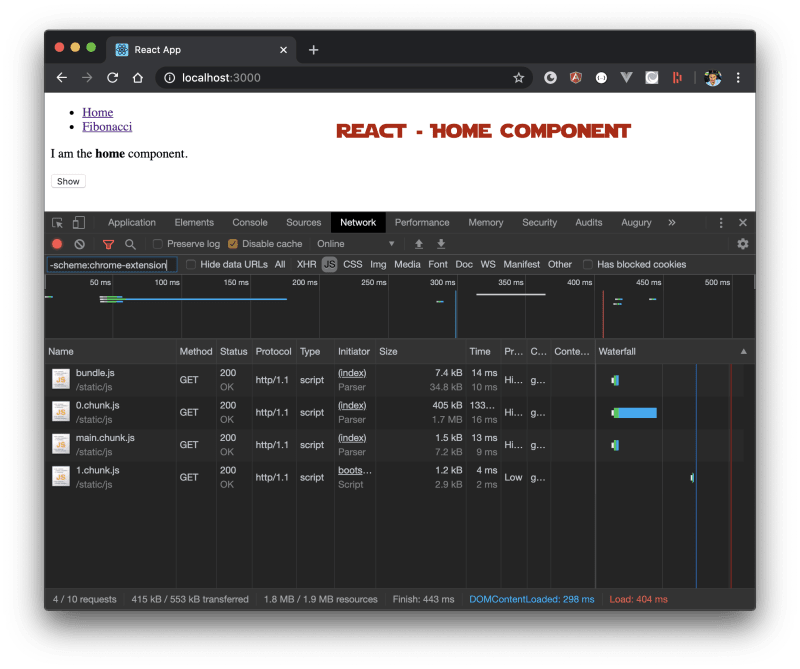
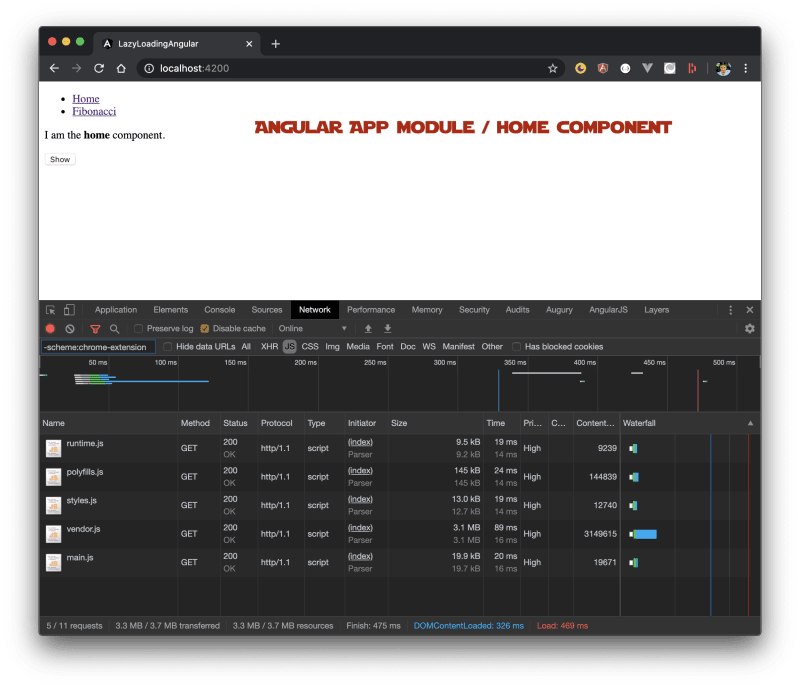
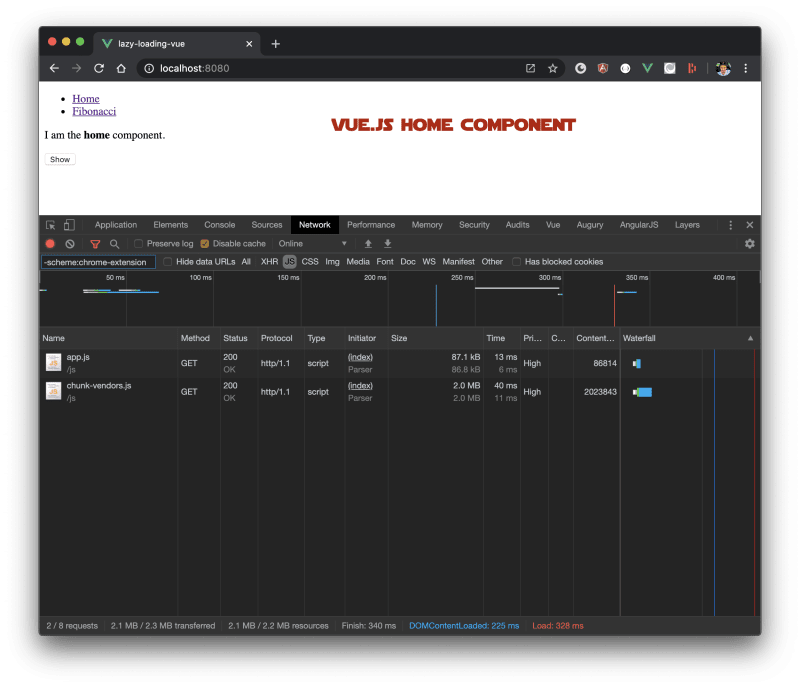
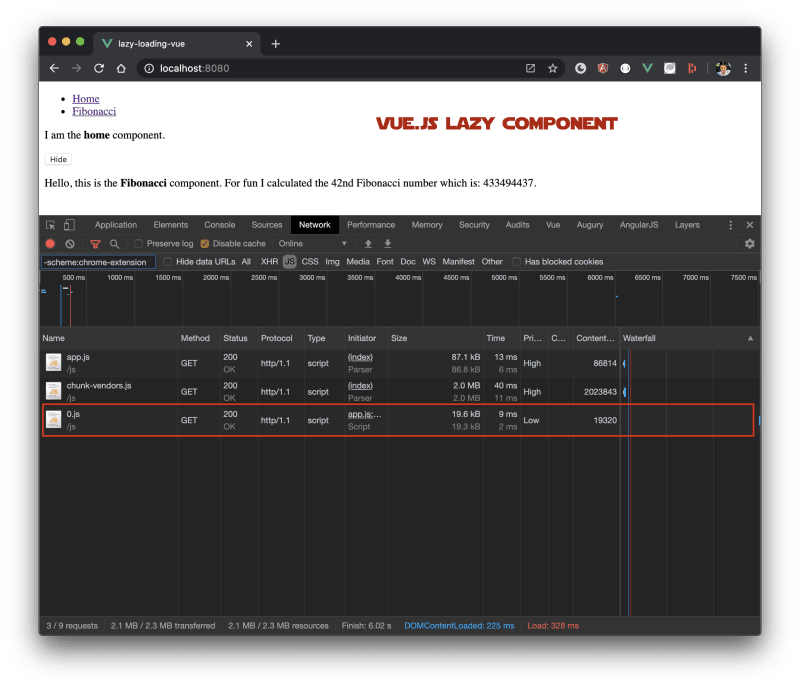
With eager loading, all the JavaScript downloads and executes up front. You can confirm this in DevTools: clicking the Fibonacci link doesn’t trigger any new JavaScript requests.
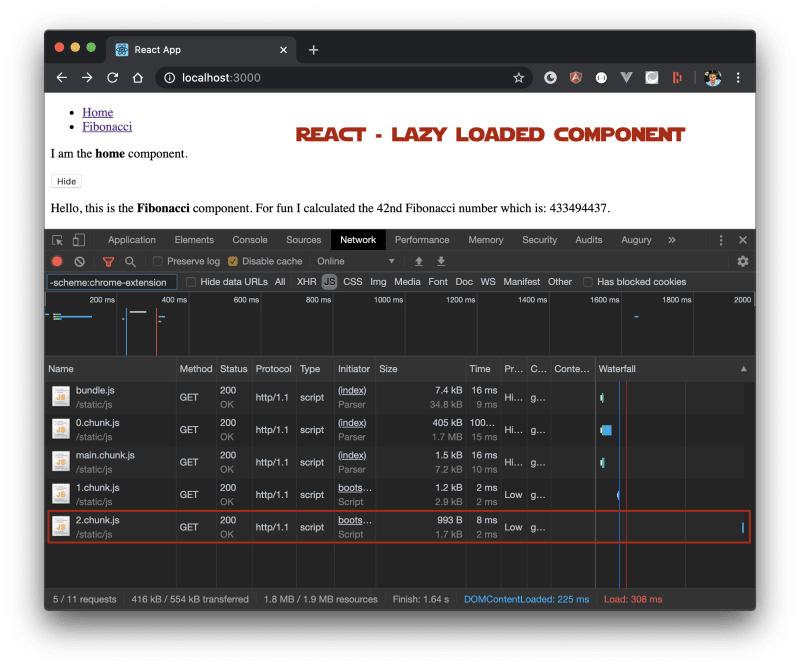
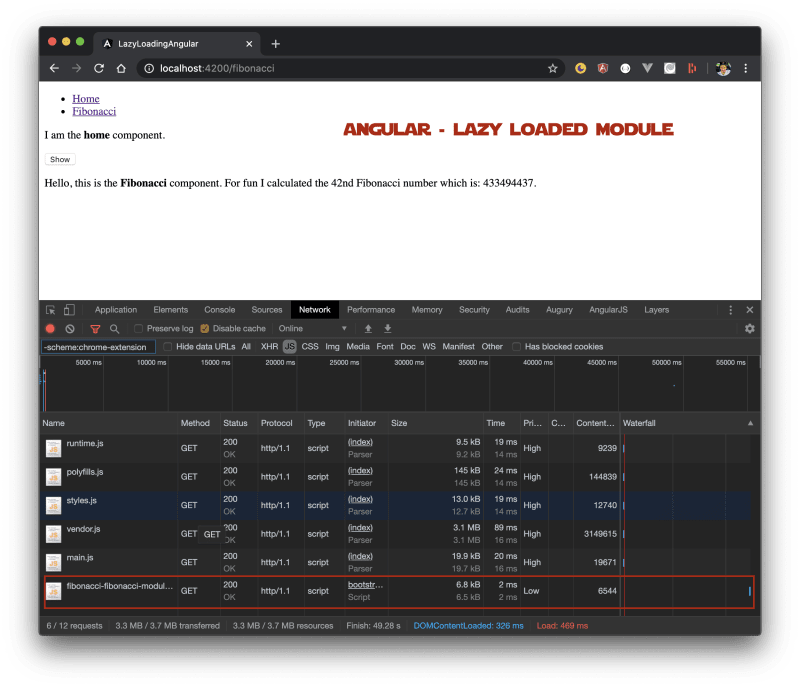
Switch to lazy-loading and less JavaScript downloads initially. When the component loads, a new JavaScript request appears. That’s the chunk you just asked for.
Have a look at these before/after screenshots, but I’d recommend running the samples yourself and poking around in DevTools.
One more thing
Lazy-loading a component doesn’t solve one problem: the execution time of the “problematic” module. Our component is exaggerated (heavy maths), but users can still hit that route and face a slow experience. All three frameworks let you use Webpack magic comments to dynamically inject prefetch (or preload) via <link rel="prefetch" />. Drop the magic comments before the component name inside the import:
const Fibonacci = lazy(() =>
  import(
    /* webpackMode: "lazy" */
    /* webpackPrefetch: true */
    /* webpackPreload: true */
    /* webpackChunkName: "fibonacci" */ './components/Fibonacci'
  )
);
This adds a <link rel="prefetch" as="script" href="/static/js/fibonacci.chunk.js"> element to the DOM.
Learn more about magic comments and preload/prefetch in Webpack: https://webpack.js.org/guides/code-splitting/#prefetchingpreloading-modules.
Conclusion
Lazy-loading lets you pick which components load later, so the rest of your app stays fast. It’s the opposite of eager loading, where everything arrives at once and performance suffers. We’ve covered how to lazy-load individual components and route-based components across Angular, React, and Vue.js.